Usage & Shortcuts
Tiling works the same whether you run KDE Plasma + tiling (normal Plasma session, easiest start) or a KWin + Noctalia custom session. See Overview → Two ways to start for which path fits you; this page covers shortcuts and the settings panel for both.
All shortcuts are registered as KWin actions. Rebind them in System Settings → Shortcuts → KWin.
Default shortcuts
Section titled “Default shortcuts”| Action | Default binding |
|---|---|
| Focus left / right / up / down | Meta+Left / Meta+Right / Meta+Up / Meta+Down |
| Toggle floating | Meta+W |
| Promote to master | Meta+Shift+Space |
| Toggle master pin | Meta+S |
| Move window prev / next in layout | Meta+Shift+Left / Meta+Shift+Right |
| Move window left / right / up / down in layout | Meta+Alt+Left / Meta+Alt+Right / Meta+Alt+Up / Meta+Alt+Down |
| Move window to left / right monitor | Meta+Shift+Ctrl+Left / Meta+Shift+Ctrl+Right |
| Increase / decrease master width | Meta+Ctrl+L / Meta+Ctrl+H |
| Increase / decrease window height | Meta+Ctrl+K / Meta+Ctrl+J |
| Increase / decrease master count | Meta+Ctrl+. / Meta+Ctrl+, |
| Retile (rebuild current screen) | Meta+Shift+R |
| Focus last window | Meta+U |
| Cycle layout | Meta+Shift+T |
| Reset sizes | Meta+Ctrl+0 |
| Toggle zoom (monocle) | Meta+Shift+Z |
| Flip master side | Meta+Shift+F |
| Toggle gaps | Meta+Shift+G |
| Scrolling: center column / cycle column width | Meta+Shift+C / Meta+Shift+V |
| Scrolling: consume / expel window | Meta+Shift+[ / Meta+Shift+] |
| Switch to MasterStack / Stacked / Scrolling / Centered / Grid | (unbound) |
KGlobalAccel only applies a default when the shortcut is free and the
action is new in your profile. If an action was previously unbound, assign it
once in Settings (or remove its stale entry from kglobalshortcutsrc).
- Drag the master/stack divider to set the master column width
- Drag a tiled window onto another to swap positions
- Drag onto empty space to insert the window at that position
- Drag horizontal borders inside a column to resize individual window heights
- Drag vertical borders in Scrolling to resize the active column width
- Unsupported resize directions snap back
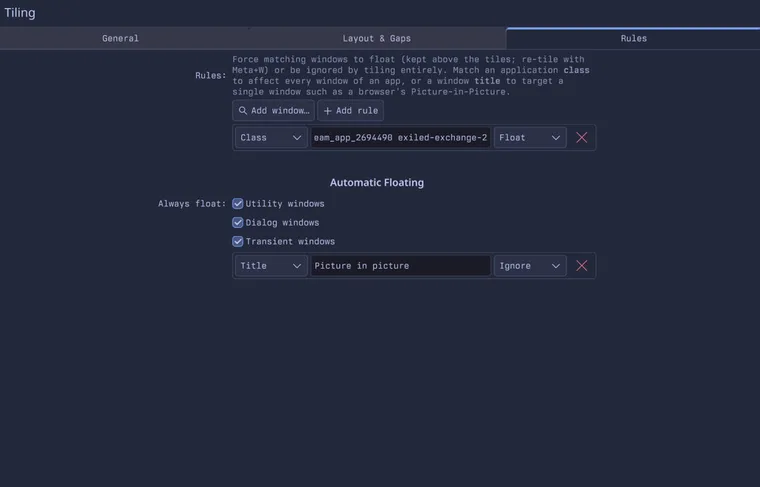
Right-click a window for Float (Tiling) (this window) or Always Float This App (Tiling) (permanent class rule).
Settings panel
Section titled “Settings panel”System Settings → Window Management → Tiling
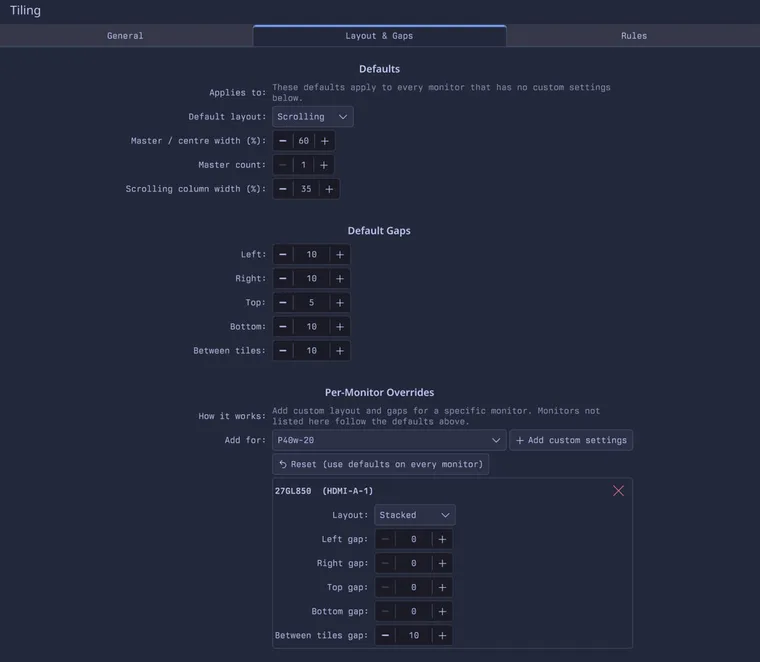
Layout & Gaps — defaults for every monitor, plus per-output overrides:
Rules — float or ignore windows by app class or title:
| Setting | What it does |
|---|---|
| Enable tiling | Global on/off switch |
| Available layouts | Which layouts appear in the cycle (MasterStack, Stacked, Scrolling, Centered) |
| Default layout | Layout used on new monitor/desktop pairs |
| Master width | Master column as a fraction of screen width (0.1–0.9) |
| Master count | How many windows sit in the master area |
| Default column width | Scrolling layout: width of new columns |
| Gap margins | Left, right, top, bottom screen margins |
| Gap between | Space between adjacent tiles |
| Per-output overrides | Different layout or gap values per monitor |
Per-monitor overrides can be reset with the Reset all per-monitor overrides button in the KCM.
Settings are stored in ~/.config/kwinrc under [Tiling]:
[Tiling]Enabled=trueDefaultLayout=MasterStackEnabledLayouts=MasterStack,Stacked,Scrolling,CenteredMasterRatio=0.5MasterCount=1GapBetween=4GapLeft=8Per-monitor values live under [Tiling][Output <name>] subgroups.
Layouts in practice
Section titled “Layouts in practice”- MasterStack — one or more primary windows on one side, the rest stacked on the other. Best for a main app plus side apps.
- Stacked — single column, full width, windows stacked vertically.
- Scrolling — horizontal strip of columns; viewport scrolls to the active one.
- Centered — master window in the centre, others in left/right stacks.
Cycle between enabled layouts with the cycle action, or set a default in the KCM.
Automatic behaviour
Section titled “Automatic behaviour”- Tiling is on by default once the module is active
- New windows tile into the layout for their monitor and desktop
- Moving between desktops or monitors retiles and moves focus with the window
- Master ratio, master count, and layout choices persist across restarts
Packaging
Section titled “Packaging”Consume the flake and compose the module onto hosts that should run tiling:
imports = [ inputs.kwin-tiling.nixosModules.kwin-tiling ];Or use the overlay / package directly:
nixpkgs.overlays = [ inputs.kwin-tiling.overlays.default ];Patching KWin rebuilds the compositor and its reverse-dependencies — only enable on hosts that actually want native tiling. A binary cache for this repo is strongly recommended.
Current limitations
Section titled “Current limitations”- Master ratio, count, and scrolling column width default globally; override per monitor in the KCM (not per virtual desktop)
- Divider drag gives an approximate ratio when gaps are non-zero
See Roadmap for planned improvements.